


Automated Backups: Your Way to Save Time, Ensure Backup Freshness, and Prevent End-User Lag

While extremely important, data protection through backups is just one responsibility of modern IT teams that are busy with tasks like updating operating systems, monitoring critical data, maintaining computer systems, and more.
To efficiently fulfill this responsibility without sacrificing other tasks, you need a professional backup solution with automated backup features that will save the IT team time, ensure fresh copies for ultimate disaster recovery readiness, and allow your IT infrastructure to ‘breathe’ during working hours.
Let’s have a closer look at the idea of automated backups and how an automated backup system works.
What Are Automated Backups?
Automated backup is a solution where data backups are created with little or no user intervention on a predefined schedule. As simple as that.
Compared to manual backup that always requires manual intervention, automatic backup works for organizations of any size, regardless of the amount of data that needs to be processed and stored, and the frequency of these operations. It can be a part of a wider backup and recovery strategy.
What Are the Benefits of an Automated Backup System for any Organization?
There are a number of ways organizations can benefit from automatic backup. Let’s focus on the most important ones.
Reduce Manual Effort to Relieve Your IT Team
Automated backup software saves time and reduces manual effort by automating backup procedures, without requiring an IT specialist to intervene.
Even if repeating a backup process would only mean logging in to backup software and clicking an imagined “Start backup” button, it still disrupts your IT Team. And what if there were a few dozen backup jobs for each branch, system, etc. to initiate manually? That would be a serious disruption.
But manual backup can be much more demanding; for example, when you need to recreate a backup job from scratch every week or even manually move data to external hard drives… An unfeasible task for organizations larger than 10 people.
All those hurdles are non-existent with automated backup software at your side.
Ensure Backup Copy Freshness for Smooth Disaster Recovery
If your organization employs more than a dozen people, it’s likely that you generate lots of new data every day: emails, changes in databases, spreadsheets, DOCs, source code, etc. With data growing exponentially all the time, it’s virtually impossible for your IT team to handle the backups manually every day for all of your systems and employees.
Having fresh backup copies is vital for having real disaster recovery options at your disposal, minimize downtime, and gain peace of mind. Automated backups keep your backed up data fresh and ready to restore at any time.
Schedule Automated Backups Outside Working Hours for Optimal Performance
Automated backups do need some kind of a scheduler to work. While this feature is necessary to run auto backups, it can be used to the advantage of the entire organization, too.
Backing up can be resource-intensive in terms of network bandwidth, processing power, hard disk read/write operations, etc. So, the best idea is to set up backups to run outside your organization’s working hours.
With a scheduler, you can precisely define the so-called backup window, i.e. time frames when backup jobs are run. Consequently, backups won’t extensively consume IT resources and won’t interfere with your IT environment, which will result in undegraded performance and no lag for your employees.
Eliminate Human Error to Avoid Corrupt Restore
As with all types of manual intervention, the risk of human error is higher than when an activity is performed automatically. And in the case of regular backups performed non-automatically, a failure is almost certain to happen sooner or later.
Automatic backup software provides peace of mind by ensuring that critical data is always protected and can be confidently recovered in case of data loss, without any unpleasant surprises like a corrupt or an incomplete copy.
Enjoy Smooth Experience of Professional Backup Software
With native backup solutions, e.g. in Windows 10, where backup is just another feature, configuring automated backups might not offer the smoothest experience.
On the other hand, for dedicated backup software, scheduling is a key feature. A simple user interface for configuring schedules, encryption, access controls, or deduplication is standard, not an exception.
How Does an Automated Backup Work?
As you’ve already learned, backing up data automatically is based on the scheduler functionality. You’d probably imagine this entails choosing date and time when a backup occurs. That’s correct but it’s a simplified and incomplete picture.
Before you actually define these simple settings, you need to decide on a type of backup schedule. A schedule type is a kind of backup scheme that defines when the initial full backup and subsequent incremental backups and/or differential backups are created.
Typically, backup software offers the following schedule types:
- Basic schedule—it’s a typical scenario when a full backup copy is created once in a longer period (e.g. monthly), while small incremental backups (that store only the data that changed since the last backup) are created much more often (e.g. daily).
- Forever incremental—this one differs from the previous in that the full backup is created only once; then backup software creates incremental backups at a predefined interval. At the next stage, all copies (full and incremental ones) are consolidated into the so-called synthetic copy. Thanks to that, you can enjoy two benefits at the same time: fast backup creation and optimized storage usage thanks to retention.
- Grandfather-father-son (GFS)—with the GFS backup scheme, the full backup (grandfather) is created once in a longer time period (e.g. month), differential backups (father)—once a shorter time period (e.g. week), and incremental backups (son)—once the shortest period of time (e.g. daily). The advantages of this schedule type are the high level of protection, regulatory compliance, and ability to efficiently store data in the long term.
- Custom schedule—backup solutions might also offer a custom schedule type, where you—as the end user—can decide on how you want to plan your automated backups.
After you choose your schedule type, you will be finally able to specify date and time settings that are available for it.
Another important functionality of a scheduler is being able to define backup windows, i.e. time periods when backups are performed. This helps to separate working hours from the time when backups are run. It is important to do so, because backups can considerably consume an organization’s resources and thus reduce performance and create lag for end users (employees), preventing them from working efficiently.
Finally, schedulers integrated into backup software may allow you to control the retention of data, i.e. how long copies should be kept. For example, you might be able to define a specific time period for keeping your copies (e.g. 3 months or 5 years) or provide the maximum number of copies you want to keep, so when that limit is reached, the oldest copy will be removed before or after creating a new one. What’s more, you might even decide on keeping copies indefinitely.
Regardless of which approach you choose for data retention, always carefully consider the available disk space, so that you don’t run out of it all of a sudden.
How to Make Use of Automated Backups with Xopero ONE Backup&Recovery?
Let’s now have a look at how you can make use of automated backups in one of the leading backup software platforms on the market, Xopero ONE Backup&Recovery. The tool offers rich scheduling options, including backup schemes, windows, retention settings, etc., when you define your backup job.
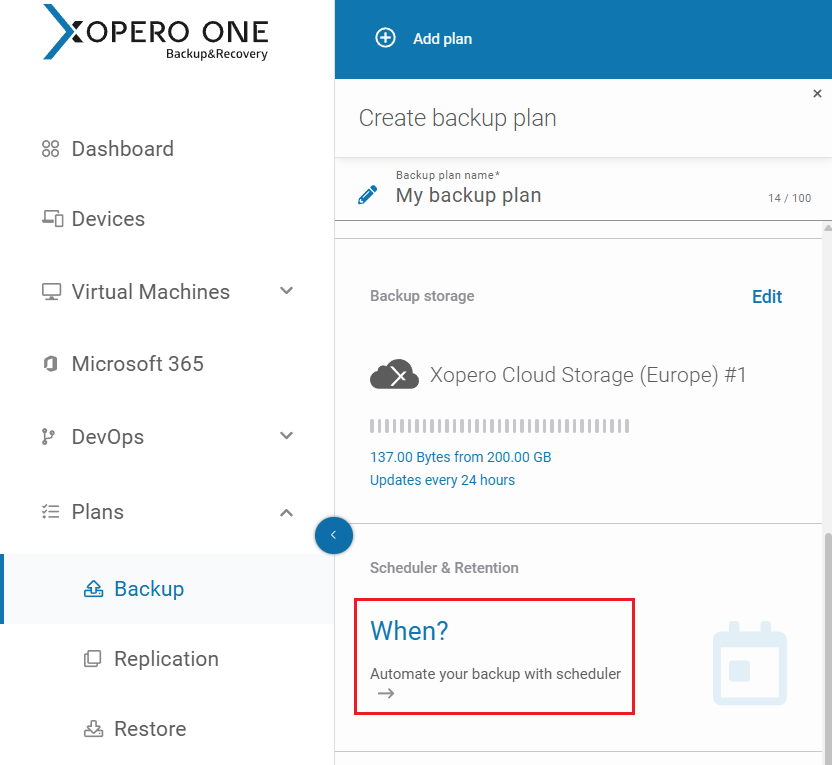
After you’ve specified basic settings like what you want to protect (e.g. Windows Server) and where you want to store your backup copy files (e.g. safe air gap backup storage), you can finally move on to scheduler settings. To do it, click When? in the Create backup plan pane.
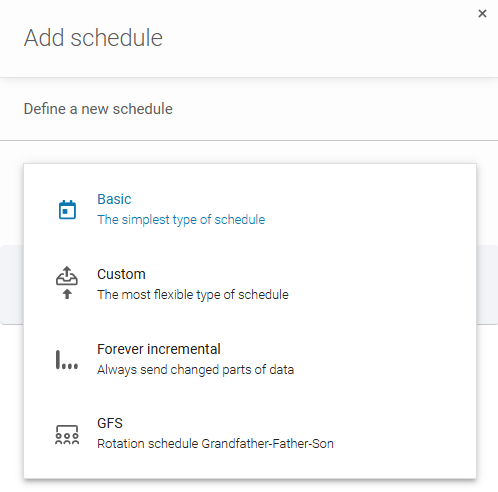
The first setting to configure is the type of backup schedule, i.e. the scheme for creating full copy and subsequent differential/incremental ones. You can choose from the above-mentioned types of backup schemes, including the Custom option:
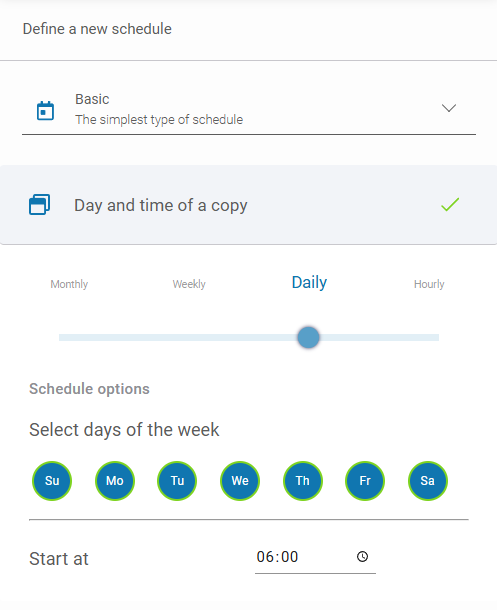
The next step is to configure specific date and time settings. The actual availability of date and time options is determined by the previously selected backup scheme. For Basic and Forever incremental schemes, this will be a single hour and days when automated copies need to be created.
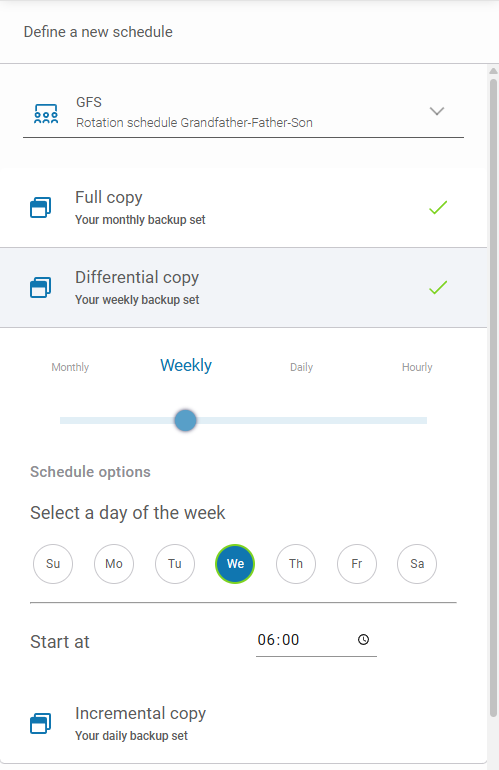
For the more complex backup schedules, you’ll need to specify date/time settings for each copy type: full, incremental, and differential (if applicable).
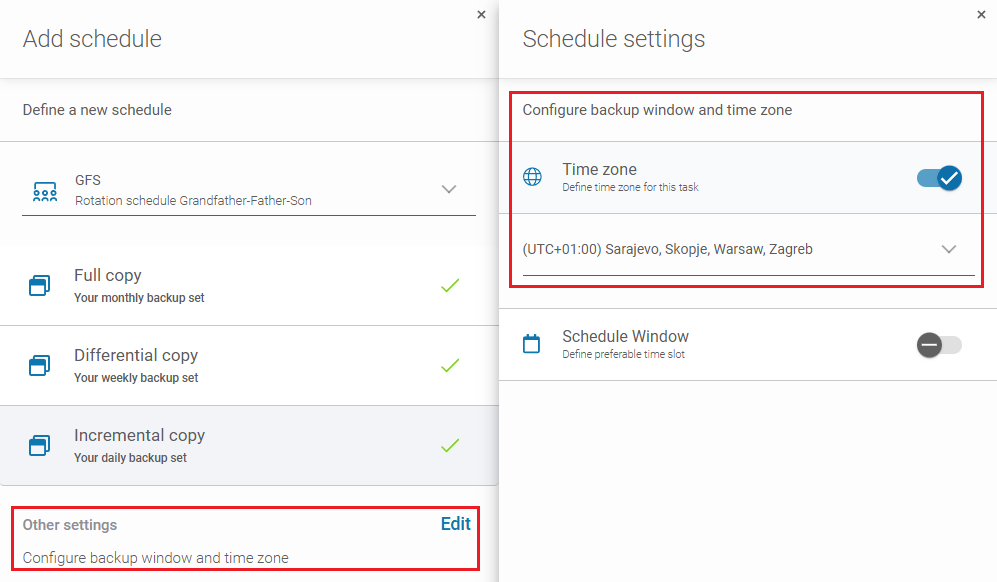
By clicking Edit next to Other settings, you can do the following:
- Specify the time zone. This setting can be helpful if your organization operates across different time zones, so you need to be specific about backup start time to avoid missing any recent data changes.
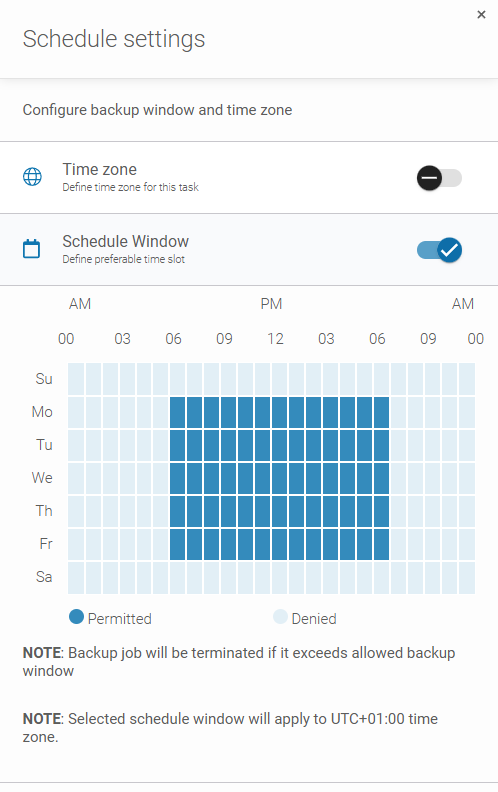
- Precisely define a backup window when backups are run through clicking and dragging your mouse cursor over selected hours and weekdays. Defining the window precisely by taking your organization’s working hours into account can help keep your infrastructure performance always at the highest level. At the same time, remember not to make the window too narrow, so your copies can be fully executed.
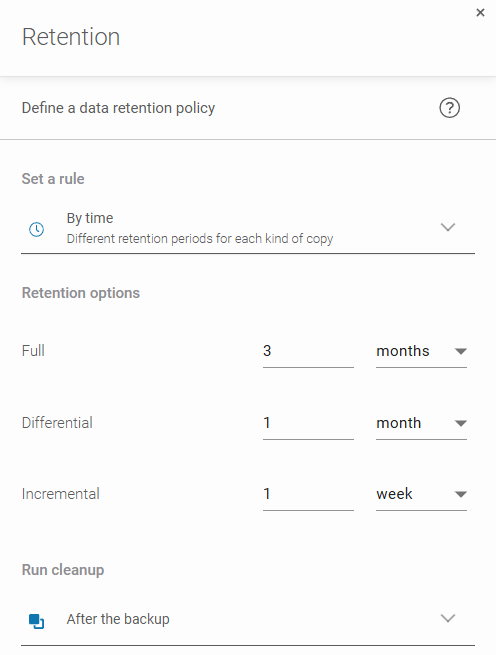
Finally, you can specify the retention settings. To start, click Edit next to Retention. Then choose a rule for keeping your backups. The rule can be based on time, number of copies, or you can decide to keep copy files forever. Depending on which rule and automatic backup scheme you’ve selected, you’ll be able to provide a time period or number of copies to keep for each copy type (e.g. full, incremental, etc.). With the last option at the bottom, you can decide when an old copy should be deleted: after or before creating a new one.
That’s it! You’re ready to go! Quite a straightforward process, isn’t it?
Now, the only thing that’s left is to configure optional advanced features like encryption, compression, deduplication, etc. that can further work to your advantage by enhancing your copy’s security and saving resources. From the perspective of minimizing the impact of creating automated backups on your infrastructure, you might be interested to play with two additional features.
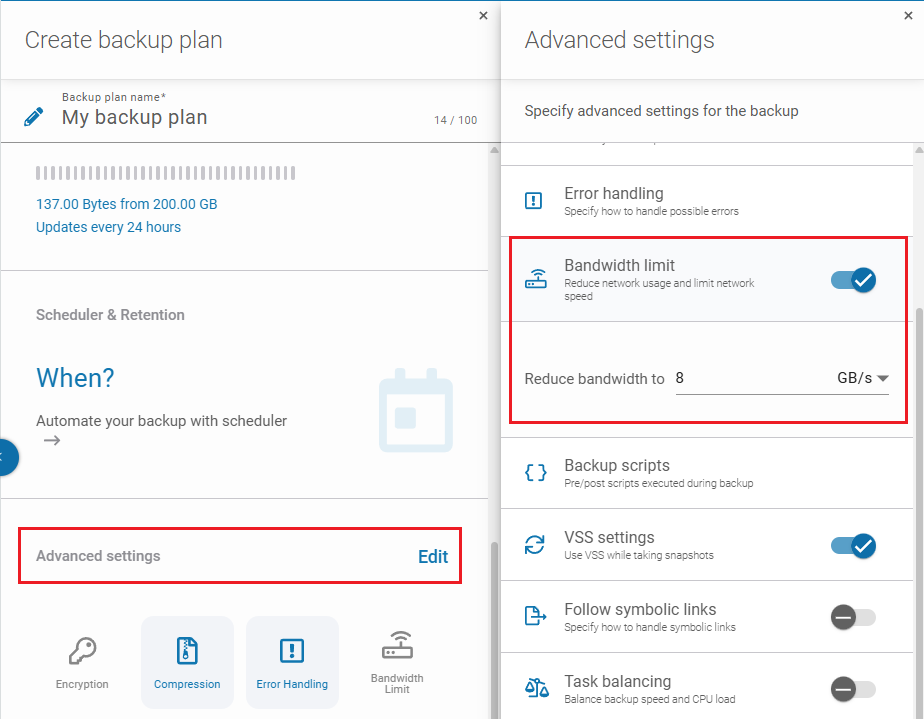
The first is Bandwidth limit. As the name suggests, it lets you limit the bandwidth of your network that will be used by the backup software from Xopero. Simply choose a speed unit and type the value to specify the top bandwidth limit that works for you. For example, it can be 8 Gb/s if you have a 10 Gig network.
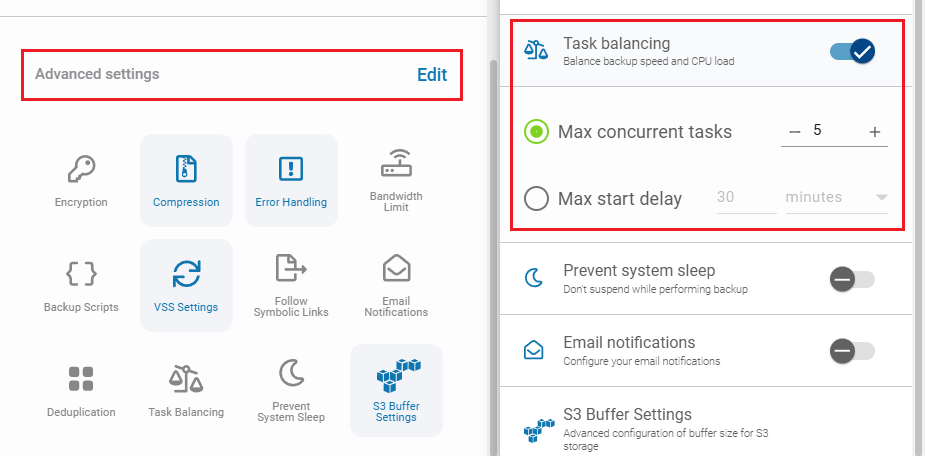
The other is Task balancing. Here, you might decide to reduce CPU load either through defining the maximum number of concurrent backup tasks or the maximum backup start time delay:
Go Fully Automated: Replicate and Restore Data Automatically
The scheduler feature in Xopero ONE Backup&Recovery isn’t limited just to backup jobs. Actually, you can use most of the features like date/time settings, time zone, or time window for replication and test restore jobs alike!
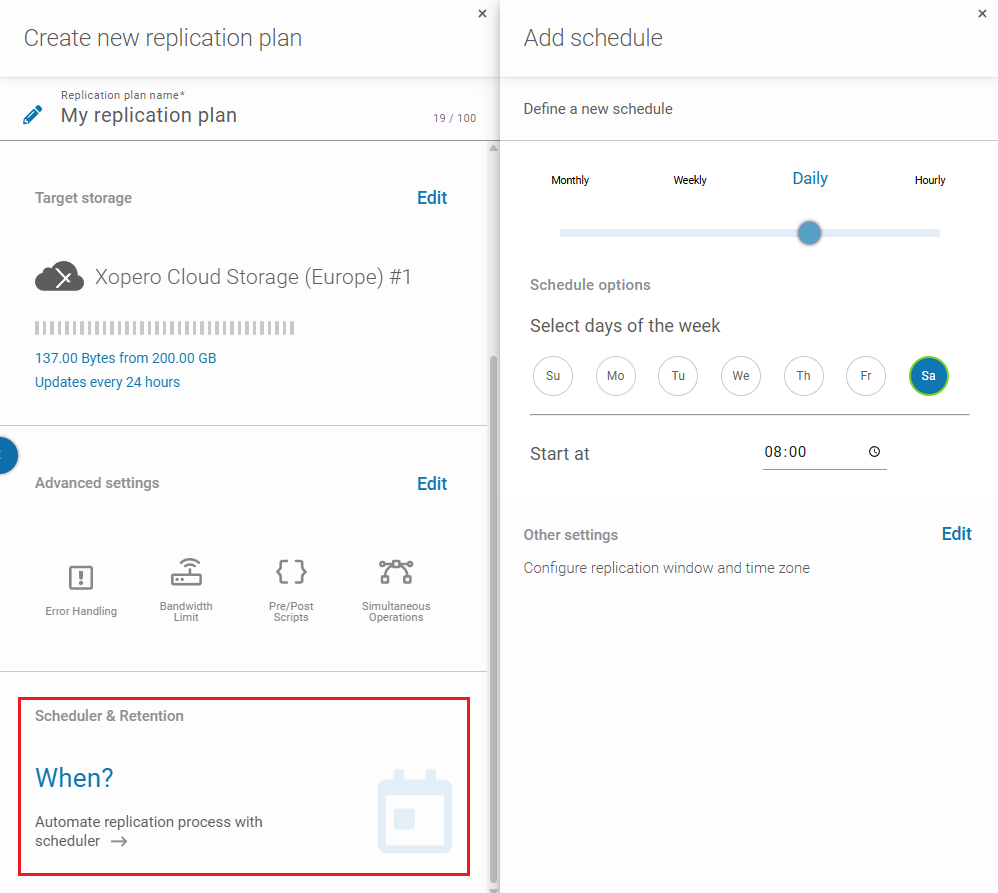
Thanks to that, you can not only automate backup but also subsequent stages of the data protection cycle, such as ensuring copy redundancy or disaster recovery.
Use Automated Backups If You’re Serious About Data Protection
In today’s world, reasons for data loss can be countless, including human error, phishing attack, hardware failure, ransomware, disaster scenarios, cyber warfare, to name a few. And, unfortunately, there’re more threats to come. Considering this and the growing amount and criticality of data in modern business, deploying an automated data backup solution is not an extravagance.
Xopero ONE Backup&Restore is a modern backup software platform that gives you a number of options to automate your data protection workflows, thereby helping you avoid painful data loss, downtime, financial penalties, and tarnished reputation.
In the package, you get features that bring your organization even more benefits such as: enhanced security (encryption, MFA, spherical security technologies), ransomware protection (immutable backups), cost-effective resource usage (compression, deduplication), time savings (centralized management, monitoring dashboard), compliance with standards and regulations (SOC2, ISO27k, NIS2, HIPAA, DORA, etc.).
If you want to check how Xopero ONE Backup&Restore can help you confidently protect your organization, be sure to sign up for a 14-day trial and test our software platform inside out for free.