

How to Back Up Microsoft 365: Step-by-step Guide

Microsoft 365 (formerly Office 365) is a very popular productivity cloud. A few years ago, ‘cloud’ appeared as a panacea for all security and performance problems. This, however, is changing with more and more examples of cloud (SaaS) incidents and attacks.
In this article, we’ll tell you why your critical data isn’t 100% safe in Microsoft 365, what may happen to it, and, finally, how to best approach Microsoft 365 backup to protect the data and ensure its uninterrupted availability for your business to operate.
Do I Need Backup for Microsoft 365?
The short answer is: Yes. Microsoft’s productivity cloud is not 100% safe and—contrary to mistaken belief—isn’t any form of backup on its own. You can still experience data loss, and the reasons for it can be numerous—from human error, through technical failures, to malware attacks or more sophisticated cyberthreats.
The Shared Responsibility Model (and Its Implications)
The Shared Responsibility Model is a common agreement between a cloud provider (here Microsoft) and end-users (here organizations using Microsoft 365) that defines obligations of each party when it comes to protecting service’s infrastructure and data stored within.
On studying Microsoft documentation, the division of the responsibilities becomes clear:
“You’re responsible for protecting the security of your data and identities, on-premises resources, and the cloud components you control. Cloud components you control vary by service type. (…) Microsoft is responsible for the underlying cloud infrastructure (…).”
What Can Threaten Your Assets in Microsoft 365?
Given that Microsoft doesn’t ensure your data’s safety, here’s what threatens your Exchange Online emails, OneDrive files/folders, SharePoint sites, and more:
- Human error: Accidental deletion or overwriting of important files.
- Malware attacks: Particularly ransomware attacks, which can encrypt data making it inaccessible without paying a ransom. According to Microsoft’s 2025 Digital Defense Report, there was an 87% increase in campaigns aimed at disrupting customer environments (Azure) compared to 2024.
- Technical failures: Physical damage to servers or software errors can lead to data loss.
- Natural disasters: Such as fires or floods, which can destroy Microsoft’s datacenters.
- Cloud outages: While temporarily, your organization’s Microsoft 365 data might become unavailable, disrupting your business continuity and generating all sorts of costs (idling employees, SLA penalties, etc.)
Limited Native Microsoft 365 Backup Tool
On 31st of July, 2024 Microsoft officially released the in-built backup & data recovery tool for Microsoft 365 called simply Microsoft 365 Backup. As a Global or SharePoint Administrator, you can access this backup software via the Microsoft 365 Admin Center’s left hand menu pane.
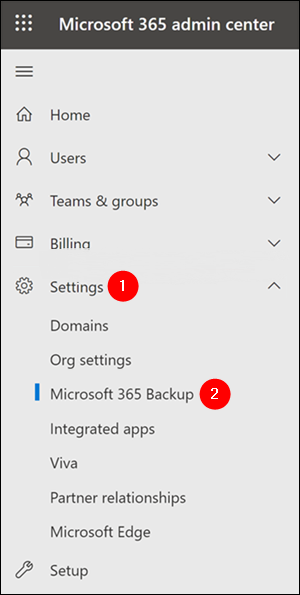
While the tool is a big step for the Microsoft 365 ecosystem (that relied solely on bin and versioning before), it’s still immature and lacking features you may know from established backup solutions. The main downsides are as follows:
- No isolation—your comprehensive backup copies are kept in the same ecosystem as your production data (Microsoft’s data centers).
- Missing flexibility—at the moment, you can’t define backup frequency nor backup retention period. For example, you can’t go beyond 1 year in terms of keeping backup data.
- Pay as you go model—while flexible at 0.15 USD/GB/month, it can get pricey with large data archives.
Consequently, Microsoft 365 Backup (together with the Microsoft 365 Backup Storage platform and API) cannot be now regarded as sufficient means to protect M365, but it definitely has a future potential.
Insufficient Retention for Compliance Purposes
The Data Handling Standard policy defines how long customer data is kept after being deleted from Microsoft 365.
The period for active deletion (when an admin deletes a user or user’s content) is 30 days at maximum. For example, deleted Exchange Online mailboxes can be retained within this window. In case of a passive deletion (e.g, expired subscription), the period is 180 days at most.
These standard retention policies won’t cater for all business needs, especially for those organizations that need to comply with strict regulatory requirements for long-term data archiving. While the policies are designed to meet common needs, there may be gaps requiring additional attention:
- Short retention periods: For some data, such as financial records or personal data, a longer period than Microsoft’s standard offering may be required.
- Limited flexibility: Microsoft’s policies may not offer enough flexibility to tailor retention settings individually for different types of data or organizational departments.
Learn more about data retention in Microsoft 365
What Do You Risk by Not Backing Up Microsoft 365?
Leaving your M365 data, which can include know-how, intellectual property, company secrets, etc., vulnerable might end up with the following:
- Permanent loss of critical data (e.g. financial records): Silent data corruption or malicious deletion (insider threats) combined with short retention periods is a perfect recipe for a cyber disaster. Data loss can trigger a domino effect with potential financial, legal, and organizational consequences for the entire organization.
- Business interruptions: If you don’t use any sort of backup, you can’t be sure if you manage to recover at all. And if you ask Microsoft for help, it’s not 100% certain that they will be able to help you, especially when the limited retention time has elapsed. This uncertainty can lead to an extended period of chaos and broken business continuity when you frantically try different ways to restore data. This, again, can have multiple financial, legal, operational, or reputational consequences. Estimating a predictable time needed to recover (RecoveryTime Objective, RTO) can be an invaluable way to ensure peace and certainty.
- Compliance violations and penalties: With cyber law such as the NIS2 directive, or the DORA and GDPR regulations in place, the lack of adequate data protection means can lead to severe financial and legal penalties.
How Do I Backup Microsoft 365 in Practice?
As you can see, the backupless approach is risky and can lead to many repercussions. To get away from these, you first need a mature third-party backup tool. And to help you with the market research, we’ve prepared a list of top 15 backup for business solutions.
Once your tool is up and running, it’s time to start backing up your Microsoft 365 data. Below, we’ll show you how to set up a recurrent automated backup task for M365 in Xopero ONE Backup&Recovery, our comprehensive backup and disaster recovery platform.
Note: In this guide, we assume you’ve already connected Microsoft 365 with Xopero ONE. If not, to add your tenant, you need to follow this simple procedure. Keep in mind that the Global Administrator account is required just to establish the connection between your very instance of Xopero ONE and M365. You’ll also need a Xopero ONE license for each M365 user whose data you want to back up. Learn more
Create a New Backup Plan
Log in to the Xopero ONE management console here, if you’ve opted for the cloud deployment of our app.
Note: If you run the self-managed version of Xopero ONE, type or paste your combination of <ipAddress>:<port> in the browser.
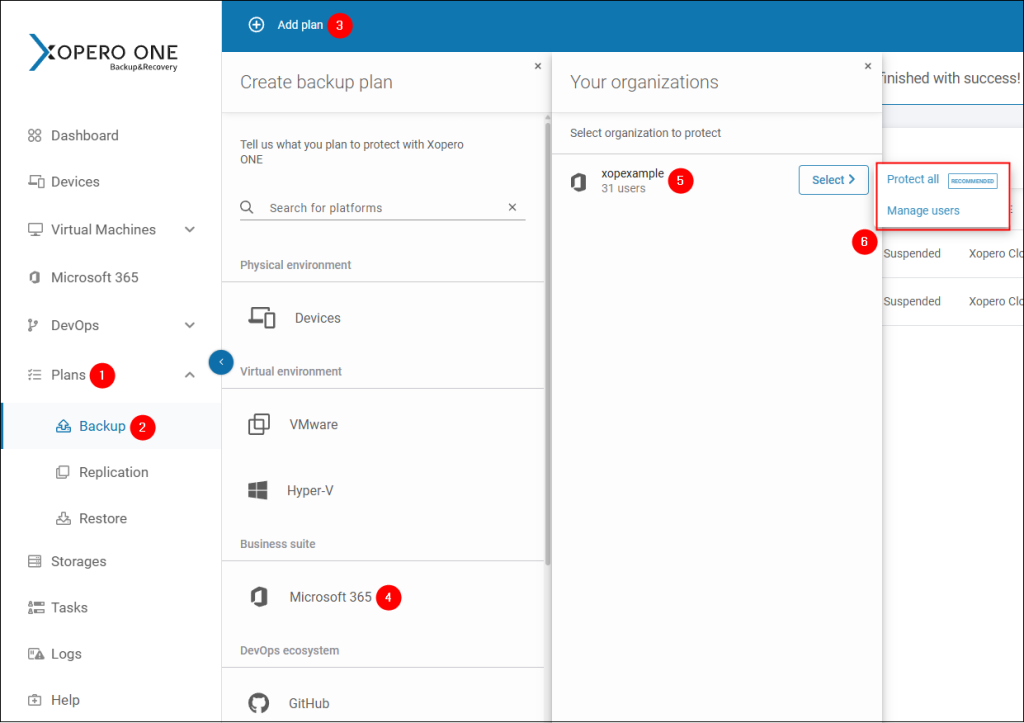
Go to Plans > Backup, click Add plan, and choose Microsoft 365 from the list. Select your M365 organization and choose if you want to protect all or just selected users (e.g. to skip service accounts).
Choose What You Want to Protect
Name your plan. Then, click What to protect? and specify the apps whose data you want to include in the copy. To ensure data protection of a given app, enable a switch next to it:
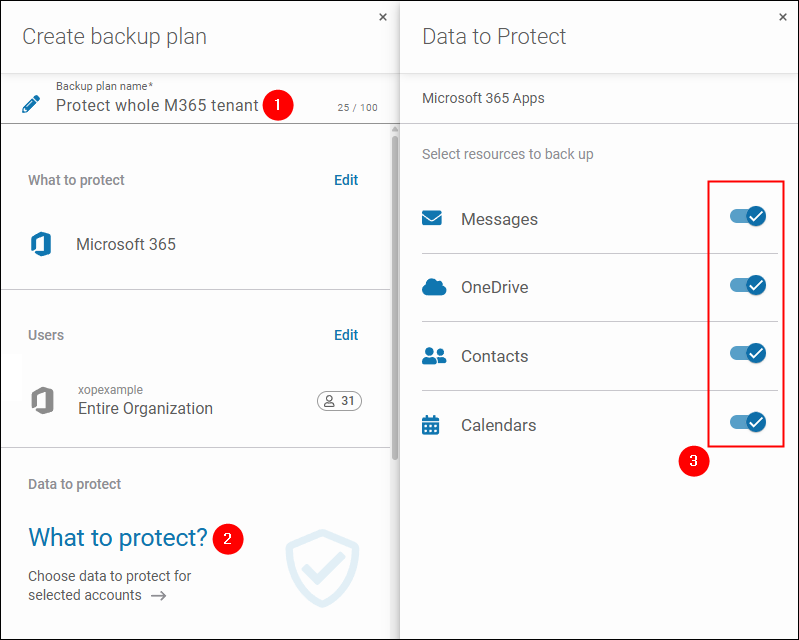
Note: Remember to click Save your configuration after completing each step (e.g. choice of M365 apps to protect, scheduler, etc.).
Choose Where to Keep Your Microsoft 365 Backup Copy
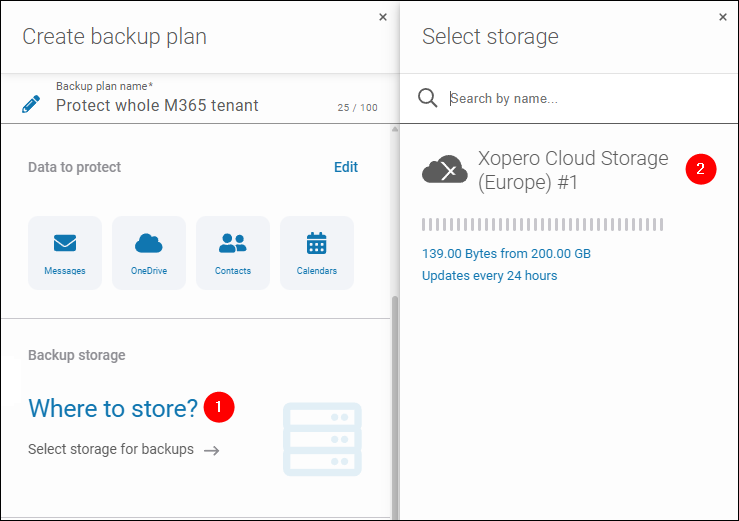
Choose the storage for your backup copy. To do it, click Where to store? and select the storage.
Note: You can use our private cloud (Xopero Cloud Storage) that comes with Xopero ONE out of the box. Alternatively, you can add and select any storage you see fit—an S3 cloud (AWS, Wasabi, etc.), local folder or disk, SMB share, or a NAS device.
Check the Amount of Data Used Up by Your Microsoft 365 Tenant
If you’re not sure whether your storage will accommodate the entire copy, you can check the space used up by your Microsoft 365 organization.
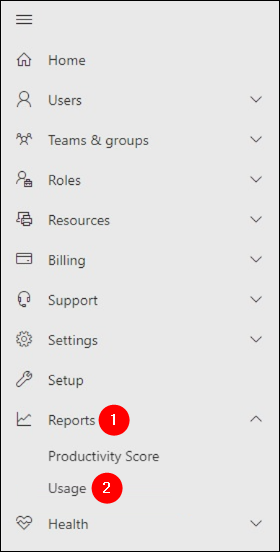
To do it, sign in to the Microsoft 365 Admin Center, go to (Show all >) Reports > Usage in the left navigation menu.
On the Usage dashboard, use the left-hand menu to go to the Exchange, OneDrive, and SharePoint dashboards and on each of them, locate an element (e.g., a chart) showing storage usage. Add up the total storage amount you’ll find on these tabs. Below, there’s an example of how the dashboard for SharePoint Online data usage looks like.
Note: In Microsoft 365, there’s no single place showing you the total storage usage (unless you’re on the Education M365 licensing).
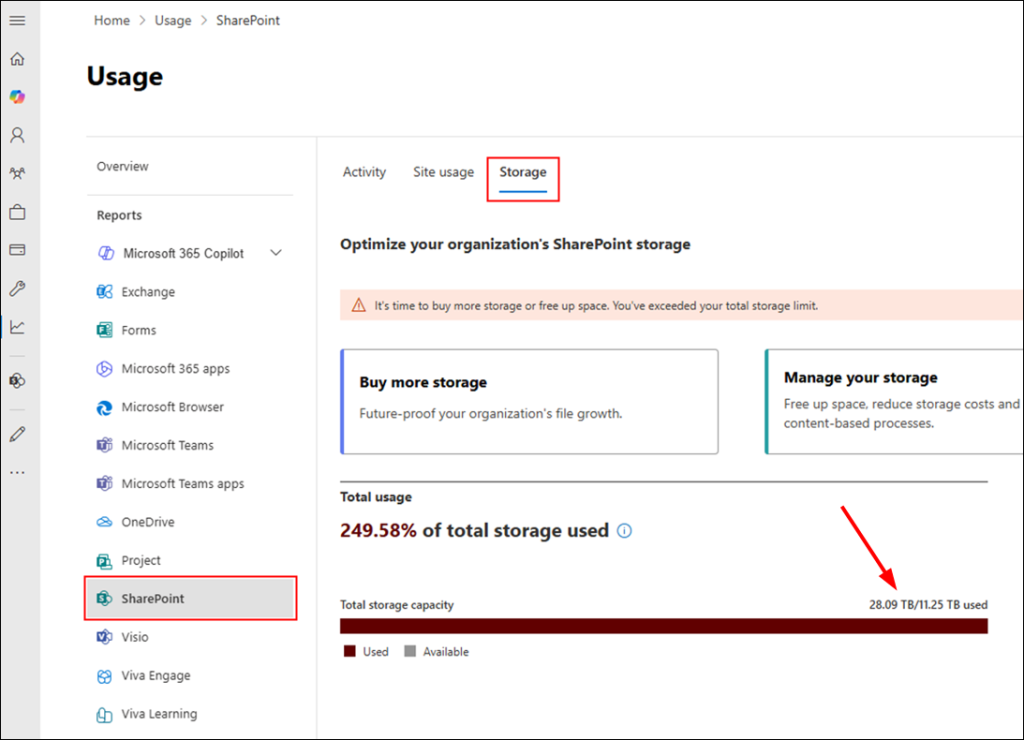
Once you know the rough amount of storage space, choose the appropriate destination for your backup copies in Xopero ONE.
Set Up Scheduler to Regularly Backup M365
With the scheduler feature built into Xopero ONE, you can save time you’d spent on manually configuring each backup task. By choosing an appropriate backup schedule (aka scheme), you can also save space in the destination storage. And if your storage is a public cloud like Azure or AWS, you can save costs for resource utilization, too.
To start, click When? in the Create backup plan pane. In the scheduler settings pane, choose preferred schedule type (Basic or Forever incremental) or create your custom schedule, specifying frequency, dates, and times.
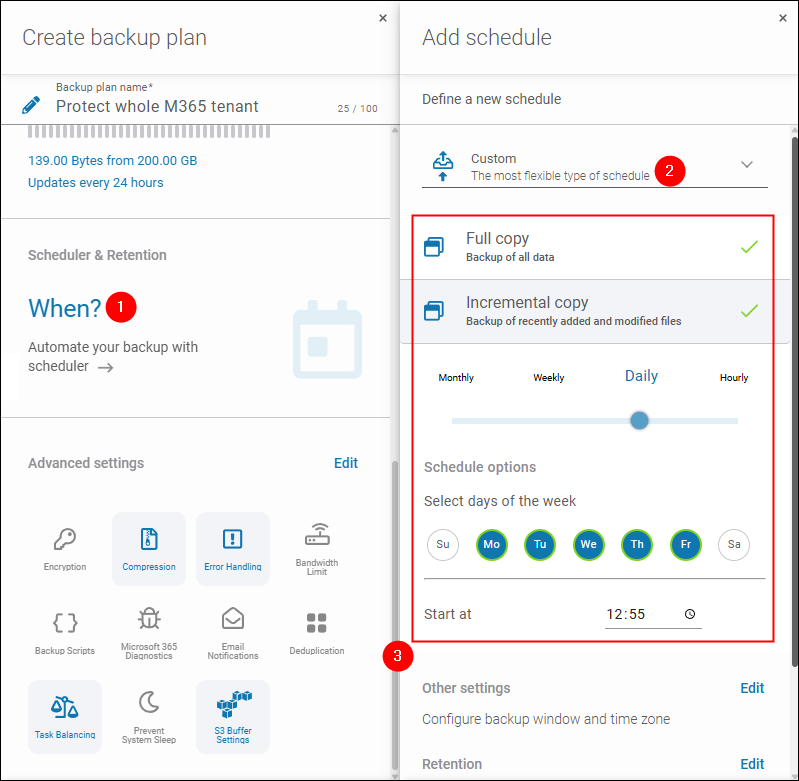
You can also precisely define your Microsoft 365 backup window by clicking Edit next to Other settings (see bottom of the previous screenshot). Thanks to that backups won’t impact your M365 infrastructure, for example, during working hours.
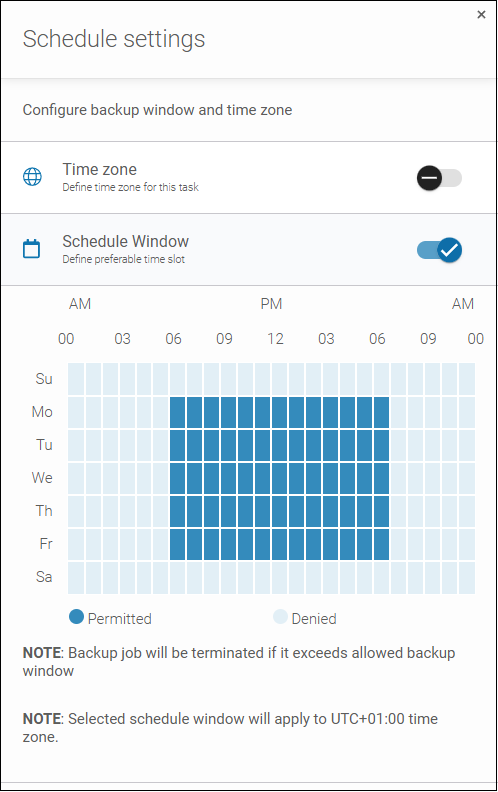
You can learn more about schedule types and configuring the Xopero ONE scheduler from our article on automated backups.
Configure a Long Retention Policy
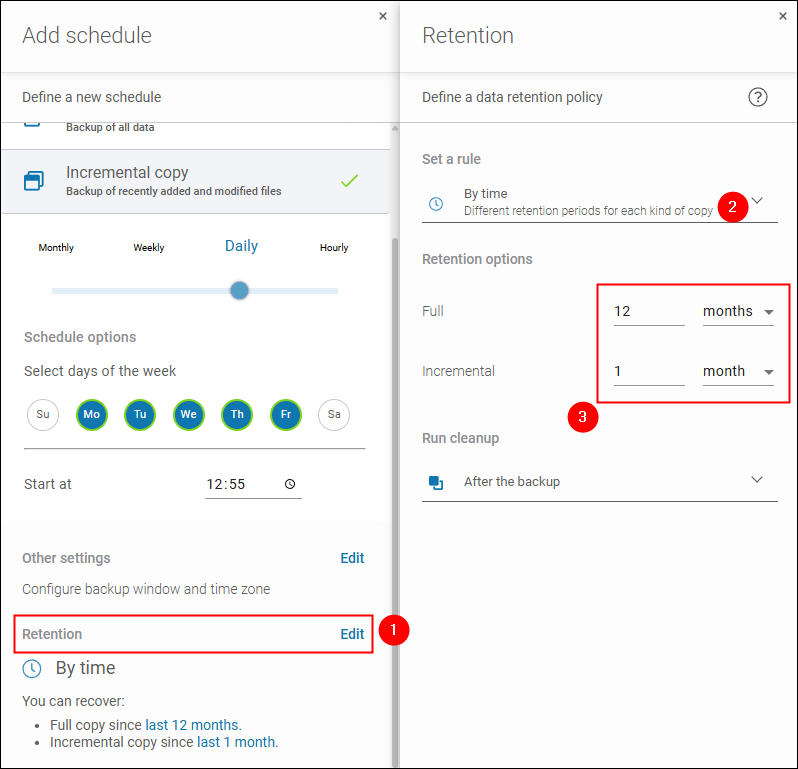
Staying on the scheduler settings pane, click Edit next to Retention to begin. In the retention settings pane, specify how long you want to keep your backups.
Using the Set a rule setting, you can choose the parameter that controls the retention period – time or number of copies. You can also choose the ‘unlimited retention’ option, keeping in mind your storage capacity. Once your storage is full, automated copies will stop working.
Further below, you can define a retention period for each copy type (full, incremental). Feel free to set this period as long as you need, provided your storage will be able to accommodate the accumulating Microsoft 365 backups.
Finish Configuring Your M365 Backup Plan
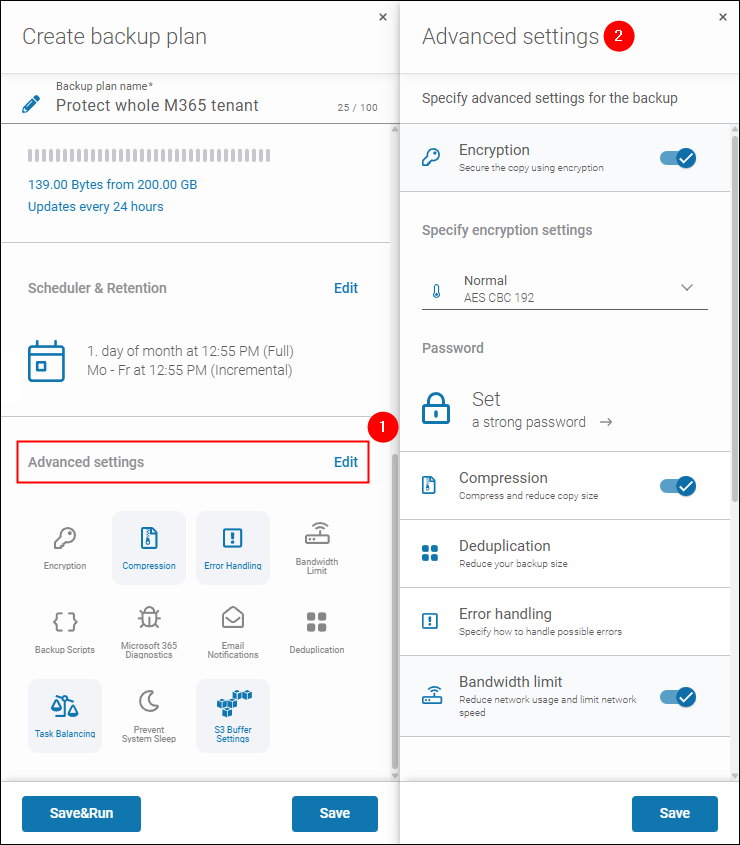
Once you’re done with the retention, you can Save your scheduler setup and proceed to configuring advanced backup settings of your Microsoft 365 backup plan (click Edit next to Advanced settings). These include, among other things, encryption, data deduplication, or load balancing settings.
Tip: Considering modern security threats, you should always use the encryption feature to prevent third-party from reading your M365 data backup contents.
Finally, check your configuration. If you wish to change anything, go back to a relevant step. If not, click (A) Save&Run to create your M365 backup plan and run it immediately or (B) Save to create it, so that it runs at the time you’ve specified in the scheduler.
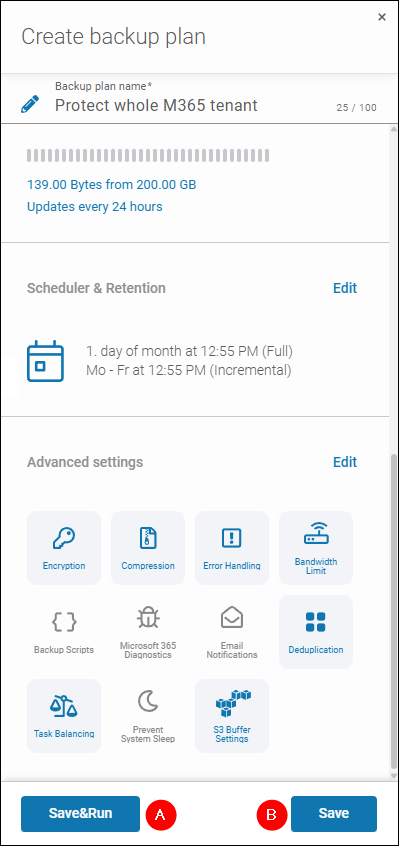
With scheduler enabled, Xopero ONE will automatically run backup jobs at the intervals (days, times) you defined in your backup plan.
How to Ensure Greater Security and Reliability of Microsoft 365 Backup Copies
With Xopero ONE, you have many options to boost the security, accuracy, etc. of your Microsoft 365 backups. Here, we’ll focus on the two key features—backup replication and granular restore.
Replicate Your Microsoft 365 Copies for Greater Security
With ransomware rampaging in cyberspace these days, one copy might not be enough to protect Microsoft 365, especially when you don’t use storage that supports the immutable backup feature in Xopero ONE.
Note: For replication to work, you need an empty storage. Otherwise, you will not be able to choose when defining a replication plan.
To replicate your M365 backup copy, go to Plans > Replication >Add plan and create a replication plan as per this Knowledge Base article. Similar to backup plan creation, you can use the scheduler feature for the replication tasks to run automatically.
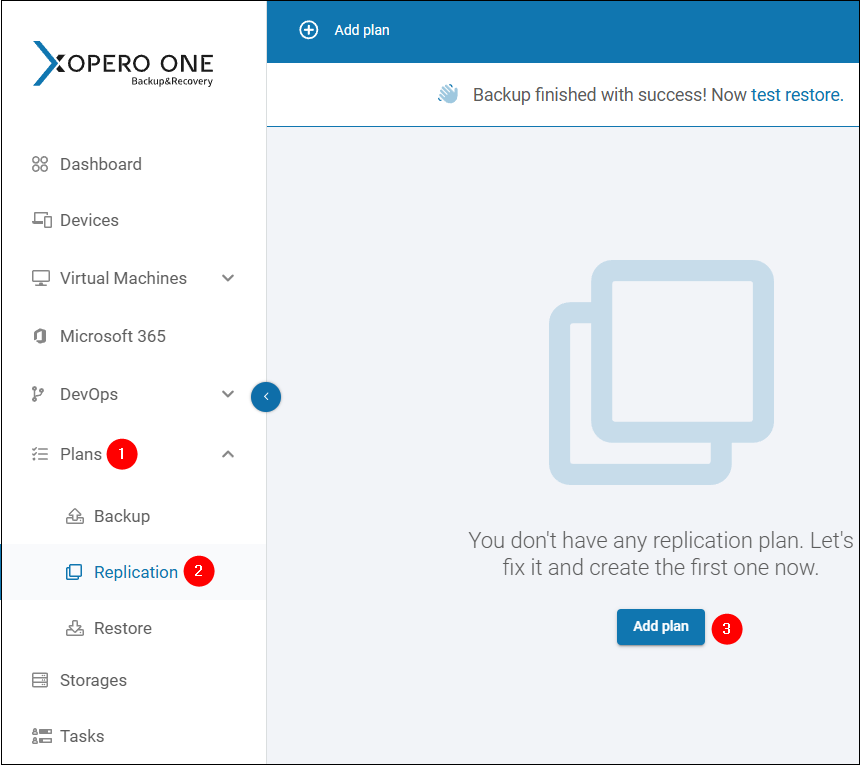
Using the replication feature, you can safeguard your Microsoft 365 backups by storing them to multiple locations and following the 3-2-1 backup rule.
Preview and Granularly Restore Your Microsoft 365 Backups
With Xopero ONE, you can preview the contents of your backups and granularly restore individual Exchange Online emails or OneDrive files. This feature might be helpful when someone hard deletes an important email or file by mistake.
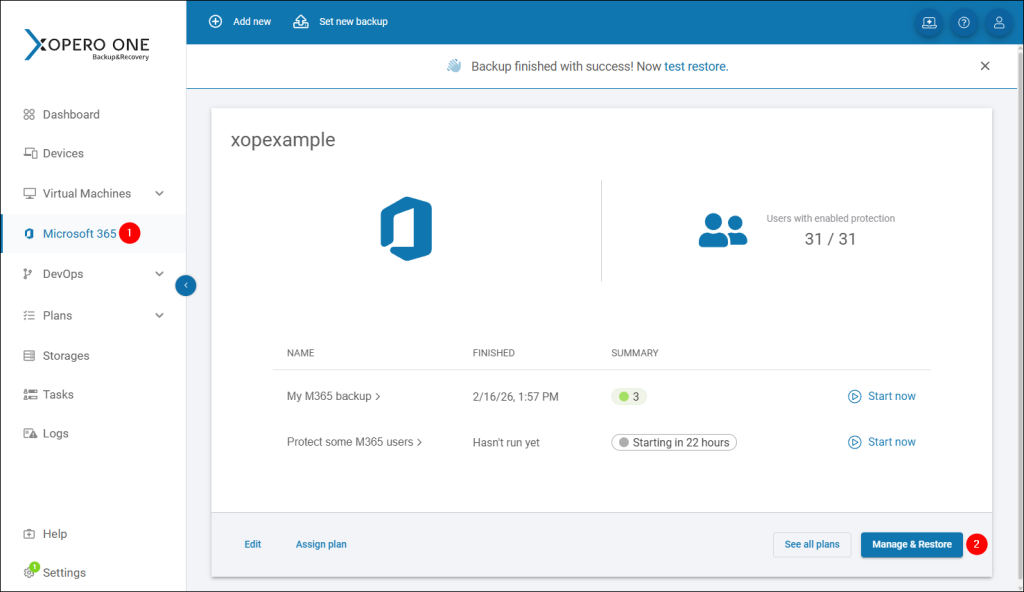
To begin, go to Microsoft 365 > Manage & Restore.
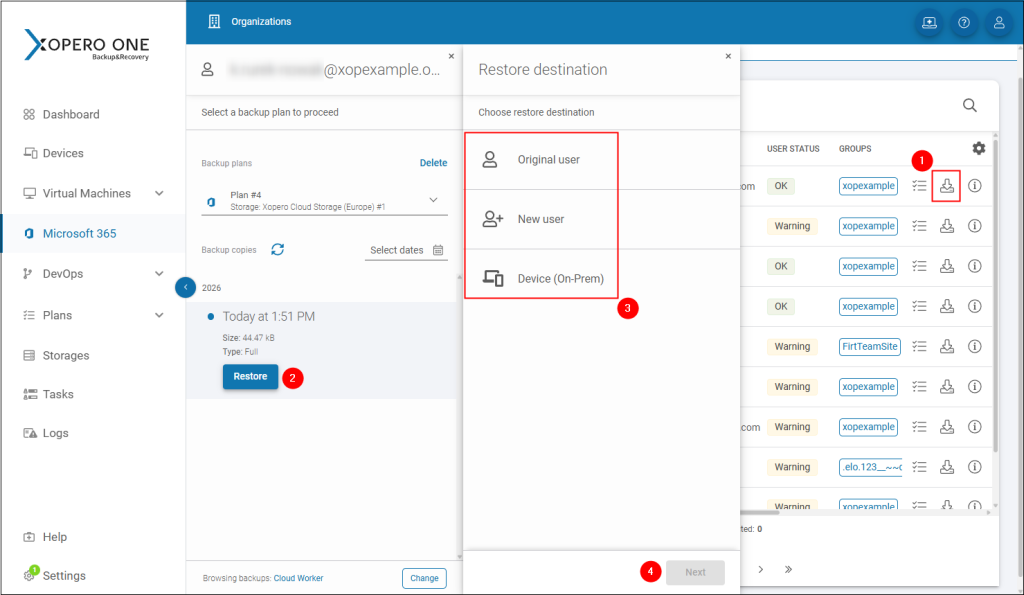
On the M365 user list, click the restore icon (1) next to the user whose data you want to restore granularly. Then, click Restore (2) next to a point in time you want to use, choose if you want to restore data to the original user (or migrate it to a new one, or save locally as a file) (3). Finally, click Next (4) to proceed to previewing backup contents.
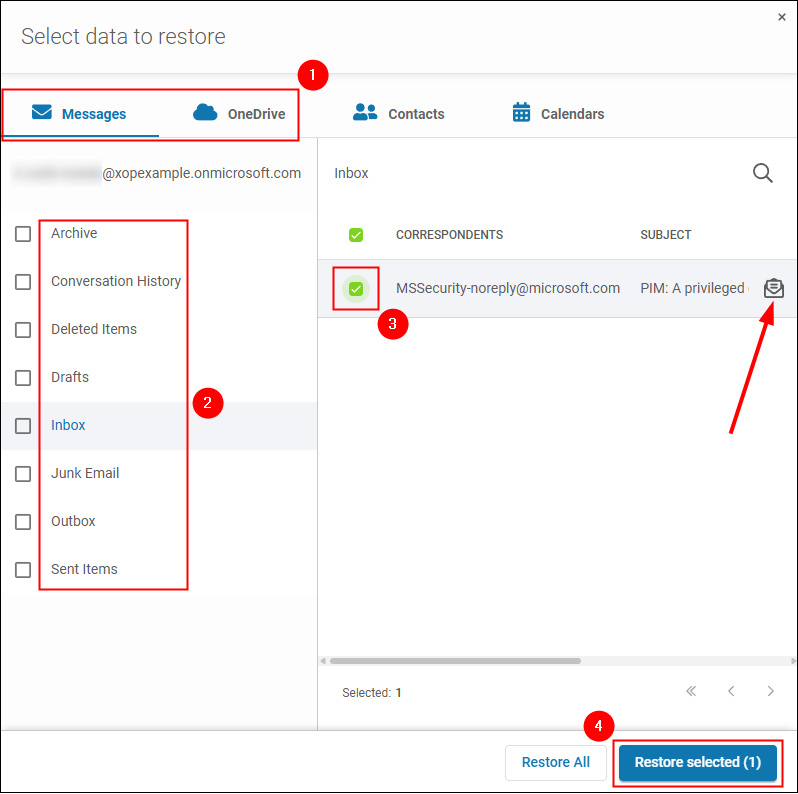
Now, choose Messages or OneDrive, select an appropriate folder, and start browsing through messages (Exchange Online) or files (OneDrive). Note: You can preview message contents by clicking the icon on the far right—this can help you to locate an appropriate message. Next, select a message or a file you wish to restore (obviously, you can select more than one if needed!) and click Restore selected.
Finally, choose the location you wish to recover data to (original folder or a new one) and click Restore to start.
Now It’s Your Turn—Safeguard Your M365 data with Reliable Backup Solution
With Xopero ONE Backup&Recovery, you can backup data from multiple workloads. In addition to Microsoft 365, you can use it to ensure comprehensive backup of endpoints, servers, virtual machines (VMware, Hyper-V), DevOps platforms, and Jira.
The solution is securely developed and maintained according to SOC2 Type II and ISO 27 001 industry standards by backup experts with over 17 years of experience. As a Xopero customer, you can also count on a knowledgeable, in-house support team who work hand-in-hand with developers and engineers and can be easily contacted.
If you want to check how you can protect Microsoft 365 data with Xopero ONE, use the free self-service 14-day trial experience. During that period, you’ll be able to test not just M365 backups and restores. See also advanced security features in action (end-to-end AES256 encryption, immutability, compression, role-based access control, etc.) and appreciate the easy user interface (central management console, easy navigation based on M365 groups, dashboards, automated reports and more).