

Microsoft 365 Backup Best Practices: Smart Strategies to Shield Your Data

Microsoft is a global IT giant whose Microsoft 365 cloud service remains the most popular productivity platform for businesses around the world. Yet, the brand and state-of-the-art data centers are not enough to protect your Microsoft 365 data against a human error (e.g. accidental data deletion) or AI-driven malware attacks, for example. The key to data protection is Microsoft 365 backup.
In this article, we’ll discuss Microsoft 365 backup best practices to show you what to consider to avoid data loss, ensure business continuity and compliance, and gain confidence that you can restore user accounts seamlessly.
Why Is Microsoft 365 Data Protection Insufficient on Its Own?
The reasons for data loss in the cloud can be numerous, from simple user errors to technical failures, and even sophisticated ransomware attacks. While Microsoft does provide a robust infrastructure and defensive mechanisms, the full responsibility for backups and data safety lies with the users.
Shared Responsibility Model
In the context of cloud services, the so-called Shared Responsibility Model is a common agreement that defines responsibilities of a cloud provider (in this case, Microsoft) and end users in the area of the protection of cloud infrastructure and data within it.
Microsoft is responsible for protecting your data in case of:
- hardware failure
- server-side software failure
- datacenter power outage
- natural disasters
All of these boil down to ensuring service availability rather than business continuity for your organization in case of a disaster. Responsibility for protecting data in Microsoft 365 (formerly Office 365) in other disastrous cases, including accidental deletion or complete data loss, lies on the user’s side.
You can learn more about the Shared Responsibility Model from Microsoft’s documentation.
Native Microsoft 365 Backup Tool with Limited Key Features and Retention
Microsoft released Microsoft 365 Backup, built-in Microsoft 365 backup software, on 31st of July, 2024. However, this backup solution is still basic and limited in terms of defining backup frequency or backup retention period. Keeping copies within the same ecosystem (Azure cloud) is another drawback. Finally, the backup service is a pay-as-you-go add-on that is not enabled by default, so your critical data is not protected without you taking an explicit action.
Learn more about the native Microsoft 365 Backup tool from our article
Best Practices: How to Set Up Comprehensive Backup for Microsoft 365
How can you ensure your Microsoft 365 organization’s data remains secure despite these gaps in data protection? The best idea is to follow the best practices of Microsoft 365 backup we discuss below to get optimal data protection against modern cyber threats.
Ensure Data Protection for Critical Microsoft 365 Apps
The most obvious starting point for backup is your organization’s primary data store. OneDrive for Business is a service providing cloud storage for your company, and, as such, OneDrive backup will probably require the most amount of Microsoft 365 backup storage.
Another Microsoft 365 service you need to back up is Exchange Online, your email system with different types of mailboxes (user, shared, group, etc.). Possibly, all of your professional communication is there, and you want to ensure the safety of the information stored within.
If your company uses SharePoint Online in Microsoft 365, you should definitely consider backing up its contents like SharePoint sites and other SharePoint Online data types like lists, web parts, Microsoft Viva apps data, and so on.
Tip: You can read more about Microsoft 365 apps in our overview of Microsoft Office 365 applications.
If you choose to protect the critical Microsoft 365 applications with a third-party backup and recovery platform like Xopero ONE, ensuring comprehensive protection is fairly easy. When you create a Microsoft 365 backup plan, just use a switch next to each app to ensure its data is fully safe.
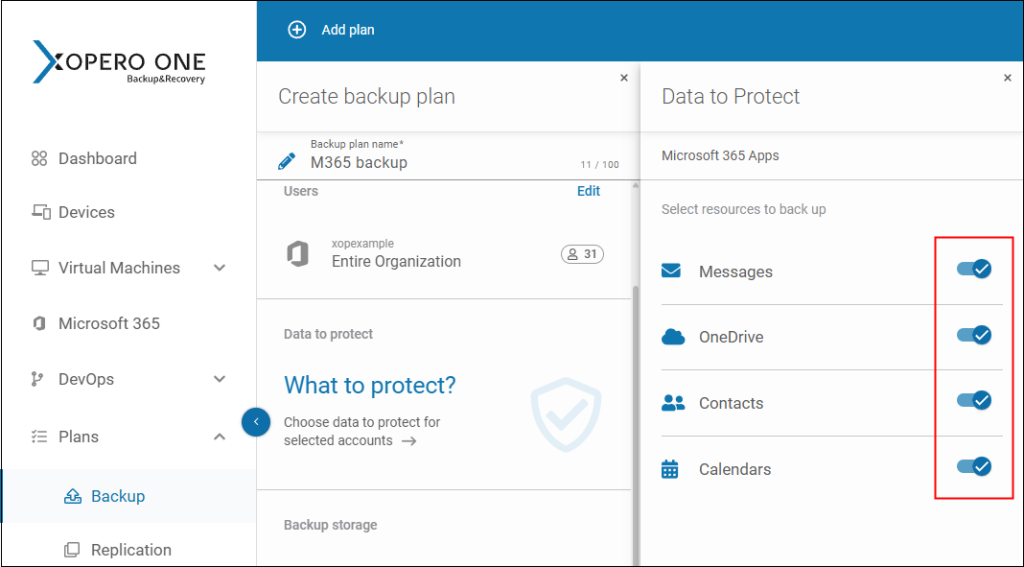
By the way, in the near future, we’re also planning to add support for Microsoft Teams data to offer you an even more comprehensive backup.
Know the Amount of Source Data to Be Handled by Your Backup Service
To choose the right type of storage to keep your backups, you need to first determine the amount of data you need to protect, especially the most critical data.
Effective data management plays a crucial role if you want to monitor app usage and estimate storage requirements for backups. To help you do that, Microsoft provides a few monitoring options, like app usage reports in the Microsoft 365 Admin Center, allowing you to identify how active your Microsoft 365 users are and how much storage space in the cloud they use.
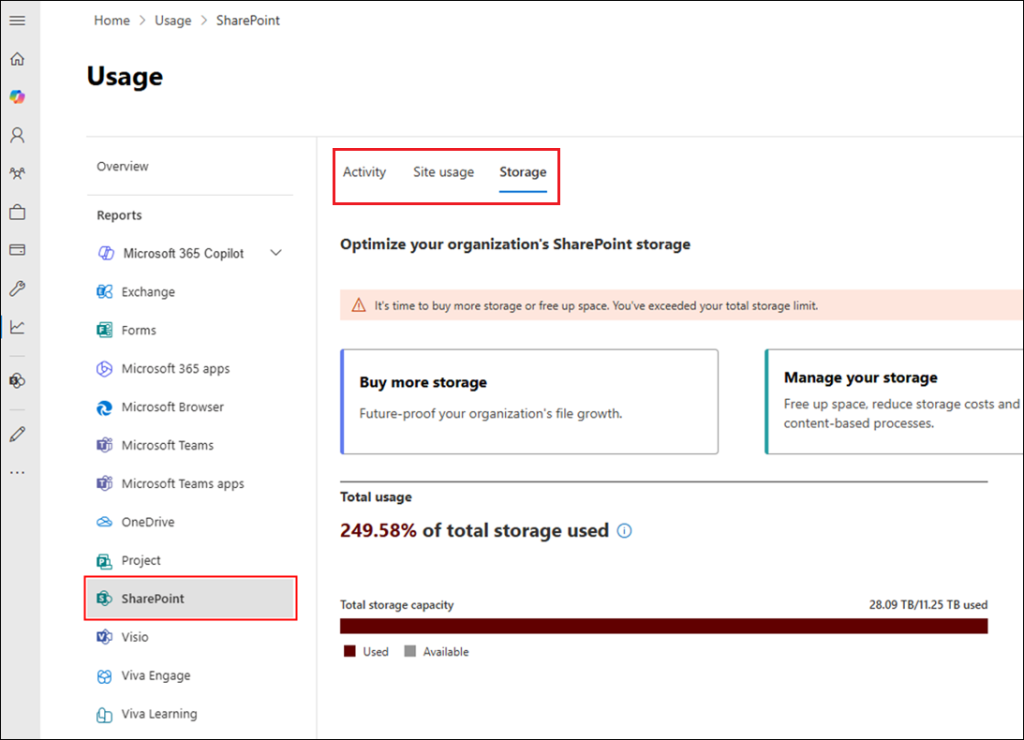
To estimate the amount of storage required, you can check how much space is used up by your users week after week. Then, using this information, you can roughly calculate how much space you’ll need for daily, weekly, monthly backups.
Apply the 3-2-1 Rule for Microsoft 365 Backup
The 3-2-1 rule is fundamental for ensuring the security of your backups and should be treated as a key component of Microsoft 365 backup best practices. It says that you should always have 3 copies of your data, in 2 different locations, with 1 of those copies stored offsite. For example, your first copy can be stored on your company’s server, the second one on a NAS device in your office, and the third one outside your office, for example in secure cloud storage.
The ultimate goal of that rule is to ensure the safety of your data in case of any disaster. If somehow one or even two copies get corrupted, you always have the third one to quickly recover your data from. And if something happens to your storage, e.g., it breaks or even gets destroyed in a fire that started at your company’s office, you still have the offsite storage, where your data resides securely.
In addition to the 3-2-1 backup rule, there are newer, more secure approaches like 4-3-2 or 3-2-1-1-0 that involve greater redundancy, testing your Microsoft 365 backups, and so on. You can read more about them in this Xopero blog article.
In Xopero ONE, you can easily apply any backup rule by defining automated backup copy replication plans. Thanks to in-built scheduler, backups will regularly replicate to desired storage locations with no intervention required on your part whatsoever.
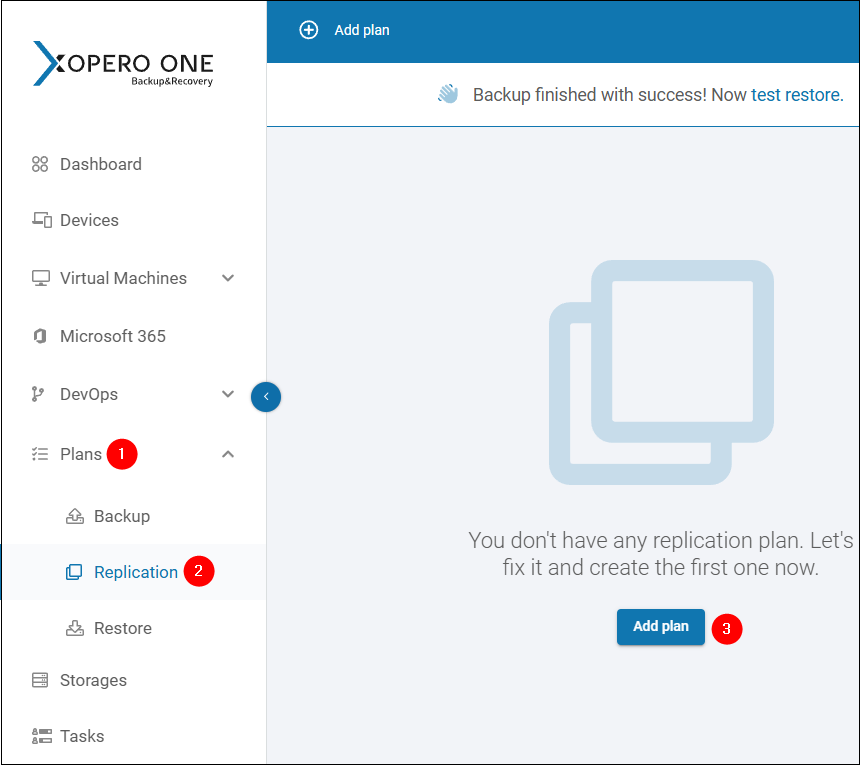
One more thing, you should avoid storing two copies of your M365 data in the same cloud. For example, with the native Microsoft 365 Backup tool, you’re limited to Azure. Instead, consider storing backups in different clouds—in addition to Azure, Xopero ONE supports Google Cloud Platform, AWS, Wasabi, Backblaze, any S3 compliant cloud (as well as local storage, e.g. NAS, SMB, local folder).
Regularly Backup Microsoft 365 to Enable Point-In-Time Restore
You create backups to protect data from a disaster that can strike. Data recovery, on the other hand, is crucial for maintaining business continuity and protecting mission-critical data from cyberattacks and swiftly recovering lost data.
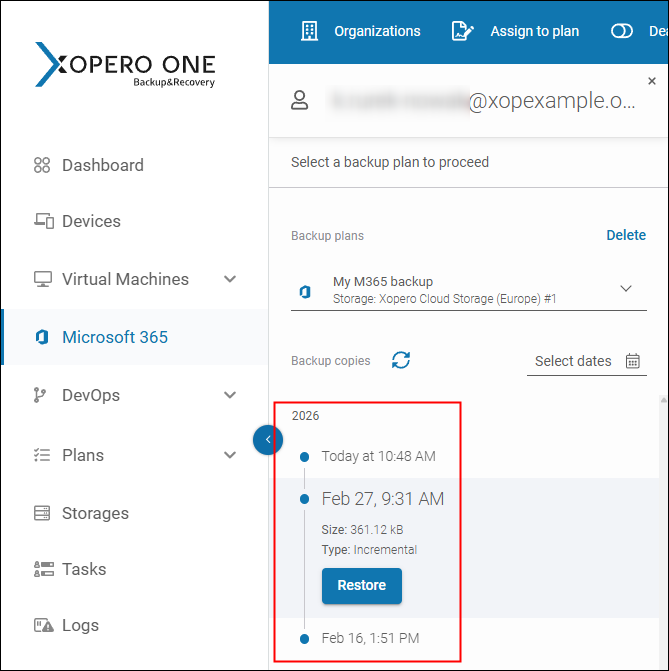
Of course, you don’t know when the disaster will happen exactly. That’s why you need to backup Microsoft 365 data regularly. You can create plans that differ between the users. For example, if few users in your organization use Microsoft 365 very intensively, creating new documents, working on databases, etc., you might consider backing up their data every day. But if users don’t make many changes to files, you may back up their data every week or even month. A good practice is also to create backups of your users’ mailboxes on a daily basis.
Using Xopero ONE, you can create as many Microsoft 365 backup plans as you wish. For each plan, you can easily choose the protected users and M365 apps, as well as the desired frequency.
Set Up Retention Policies
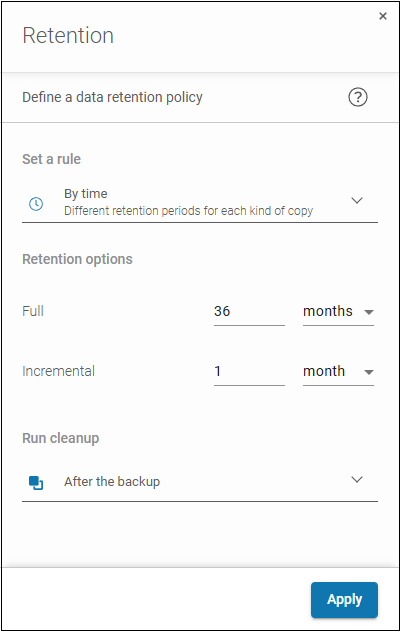
You might be wondering for how long you need to keep the backup copies. This is when retention policies come in handy. And they may vary depending on your organization’s compliance requirements or policies. Well-thought-out retention settings, combined with features like granular recovery, can prevent data loss during an employee offboarding process or when items are deleted accidentally.
Microsoft imposes native, limited retention policies on organizations using Microsoft 365. For example, deleted files are stored in the recycle bin for 93 days at maximum. With the native backup solution, Microsoft 365 Backup, 1 year is the longest retention period. If you need more time to keep backups (e.g., because you operate in a regulated industry), consider third party apps for backup and recovery.
For example, Xopero ONE lets you freely define retention by time or number of copies. You can set unlimited retention, too, provided your storage space can accommodate everything.
Configure File Versioning
When your users work with files, and you want to keep the previous versions of those files (e.g., to become protected against accidental file deletion), you might want to take advantage of versioning. In Microsoft 365, the feature is enabled by default. Keep, however, in mind that versioning may speed up the usage of your Microsoft 365 storage space. Also, due to complexity of the feature, users may experience conflicts like, for example, users seeing different versions of the same document, lost progress, etc.
To avoid these, you can use the granular recovery feature in nearly any third-party backup solution enabling you to restore specific items (e.g. individual folders or emails) rather than entire backups from a selected point in time. Of course, similar to native solutions, keeping multiple versions of files requires additional storage. But with backup software, you can keep your data in a location of your choice, where the price of a 1 GB of storage is (usually) much cheaper than Microsoft’s.
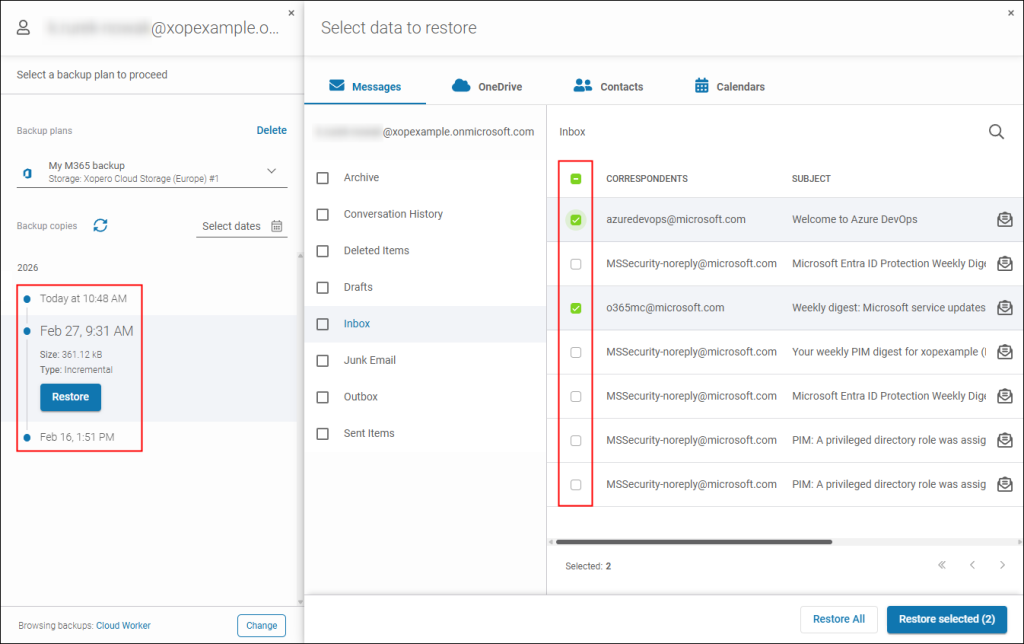
Xopero ONE offers granular restore for Microsoft 365 backups, letting you recover just chosen emails or OneDrive files/folders from a precisely selected point in time.
Harden the ‘Backup Identity’
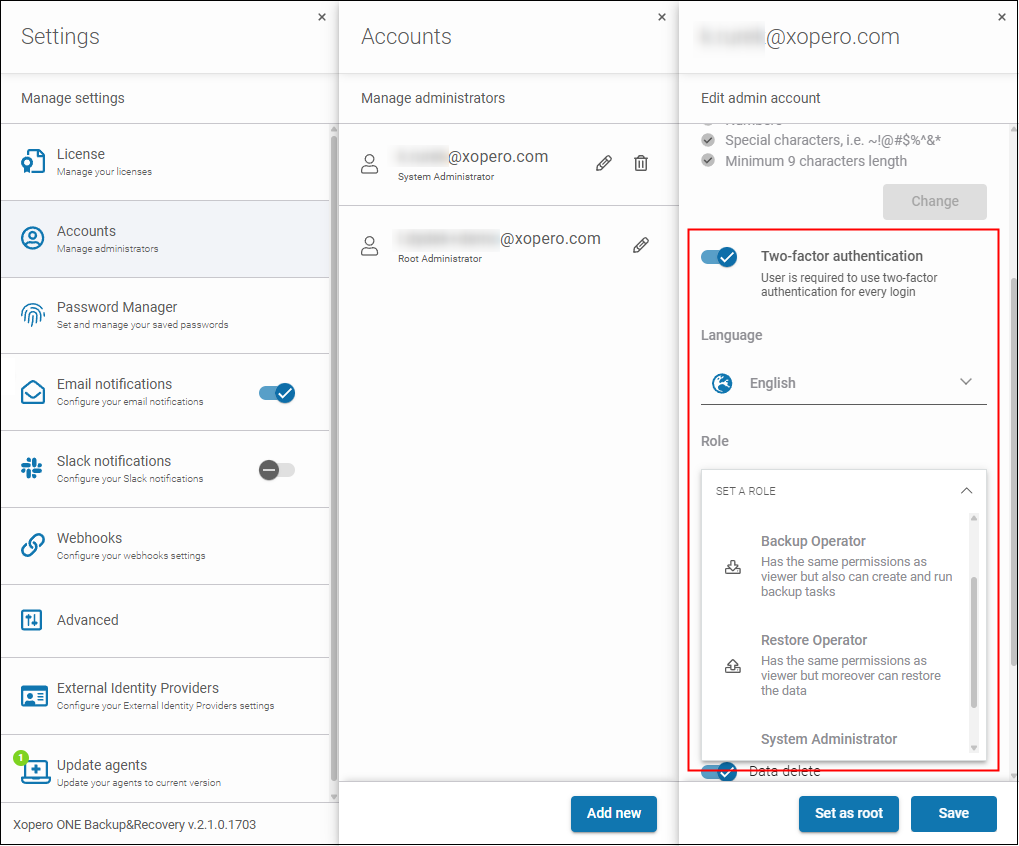
Attackers now prioritize deleting backups before encrypting or corrupting organization’s primary data. So, regardless of whether you decide to backup Microsoft 365 data natively or with a third-party backup solution, ensure the maximum security of the admin account you’ll use to handle backups as follows:
- Don’t use the same account (credentials) for backup admin account as for other administrative accounts in Microsoft 365, e.g., Global Administrator.
- Enforce multi-factor authentication (MFA).
- Limit access to the backup console with Role-Based Access Control (RBAC).
- It might be a good idea to set up the backup admin account (as well as an emergency ‘break-glass’ account), using the default onmicrosoft.com domain. This additionally protects you against getting locked out by DNS issues affecting your tenant.
Xopero ONE supports Microsoft as an identity provider (IdP), so you can log in to the backup management console with any account in your tenant. In addition to native Microsoft 365 security measures, our tool provides its own MFA and RBAC mechanisms to ensure the highest level of protection for your backups.
Restore Data to a Test Microsoft 365 Environment
Backups that can’t be correctly restored are useless. If your organization owns a sandbox Microsoft 365 environment, you should test restoring data at least once a quarter (or preferably once a month).
To access and verify restored data, you’ll need a Microsoft 365 license for each user account. If the cost of all sandbox licenses is too much for you (e.g. you have hundreds of M365 users or more), you can limit the tests to a selected batch of random accounts. Tip: You can obtain a free demo tenant from Microsoft if you are eligible for Microsoft 365 Developer Program (you develop apps for Microsoft’s ecosystem) or you’re a Microsoft Partner (reseller, consultant, Independent Service Provider, ISV).
Note: Using the default onmicrosoft.com domain for backup testing is not an option, because it’s actually your production environment (an alias of the tenant identity). The default domain is bound with your primary domain.
Thanks to test restores, you gain confidence to act more predictably and efficiently in the face of a real threat. Testing is also a way to calculate accurate Recovery Time Objective (RTO) and Recovery Point Objective (RPO) metrics for your organization, so that you know how fast you can recover and how frequently you should run your backups.
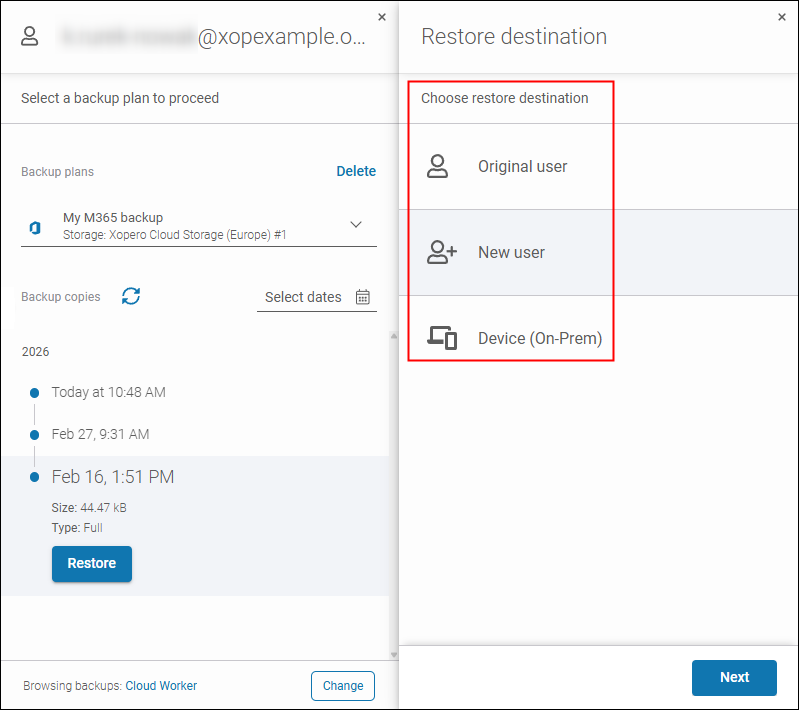
Using Xopero ONE, you can not only restore Microsoft 365 data to the same user account but also to a new one. Thanks to that, setting up tests with a dedicated, separate sandbox tenant is easy.
Xopero ONE: Your Go-To Backup Solution for Microsoft 365
As demonstrated, Xopero One can help your organization by:
- Addressing the native security gaps in Microsoft 365, such as the Shared Responsibility Model, non-flexible backup, and limited retention
- Ensuring the protection of critical Microsoft 365 data on multiple levels. Tip: For a comprehensive step-by-step guide to protecting Microsoft 365 with Xopero ONE, check out this blog article.
While we focus on Microsoft 365 backup here, with Xopero ONE, you get much more:
- Multiple workload support—the comprehensive backup for your organization covering endpoints, servers, virtual environments (VMware, Hyper-V), SMB shares, NAS devices, M365, DevOps platforms, and Jira.
- On-premises or cloud storage—you can choose where to store your Microsoft 365 data copies, on a local machine, a NAS device, Xopero Cloud Storage (private cloud), a selected public cloud, and more.
- Central, user-friendly management—with the simple & the most intuitive central management web console, backing up and recovering data in Microsoft 365 is simpler than ever. You can also easily monitor backup jobs, as well as receive Slack and email alerts to be up to date.
- Automated backups—define whether your backup job should run once or automatically at a specified frequency. With Xopero ONE, M365 backups can be the set-and-forget experience. The in-built scheduler allows you to set jobs to run outside working hours, too (so-called backup window).
- Encrypted backup—your data is always encrypted end-to-end. Choose a preferred encryption algorithm and length of the encryption key to make sure nobody, except you, can decrypt your information.
If you still haven’t taken any steps to protect your Microsoft 365 organization data, it might be the right moment to consider a professional backup tool. It’s not a needless indulgence, especially with ransomware and AI-backed attacks becoming increasingly prevalent. To make a fully informed decision, take your time to test Xopero ONE inside-out for 14 days for free.